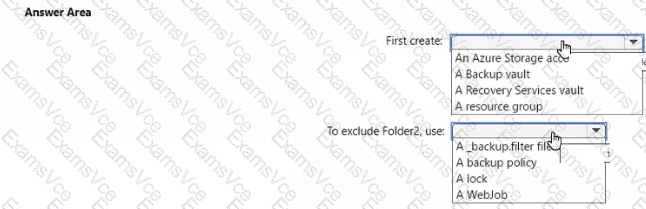
First create: ✅ A Recovery Services vault
To exclude Folder2, use: ✅ _backup.filter file
In Azure App Service, app backups provide a way to protect your web applications by storing their configuration, content, and optionally associated databases in a Recovery Services vault.
Step 1: Creating the Backup Infrastructure
According to Microsoft Azure Administrator documentation, before you can configure a web app backup, you must first create a Recovery Services vault. This vault acts as the centralized storage repository for your backup data and allows you to configure, schedule, and restore app data when needed. The vault is built on top of Azure Backup and integrates directly with App Service for automated backup scheduling.
Official documentation states:
“Before enabling backups for your App Service app, create a Recovery Services vault in the same subscription. This vault stores backup data securely and allows you to manage retention and recovery options.”
(Source: Microsoft Learn – Back up and restore an App Service app)
Step 2: Excluding Specific Folders
When performing web app backups, there might be folders you wish to exclude (such as logs, temporary files, or large static assets). Azure App Service supports this exclusion through a special configuration file named _backup.filter.
This file should be placed in the /site/wwwroot directory of your App Service app. Inside the file, you list the relative paths (e.g., Folder2) that you want Azure to exclude during the backup process.
Official Microsoft documentation explains:
“You can exclude specific files or folders from your web app backup by creating a text file named _backup.filter in the D:\home\site\wwwroot directory. Each line in the file specifies a path relative to the wwwroot folder that should be excluded from the backup.”
(Source: Microsoft Learn – Exclude files from your app backups)
Example content of the _backup.filter file:
Folder2/
This ensures Folder2 is not included in the daily backup.